 TennisDraw
Here to help
TennisDraw support
Questions, a bug, or an idea for your next practice session?
Email swingdraw@gmail.com. Include your device model, iOS version, and what happened. Please send a video only if you want us to see it and have permission to share it.
Start with a clip
Tap + in Library to choose a tennis video, or open Record to film a session. Open a saved clip to review it, adjust speed, and step through frames.
Draw and compare
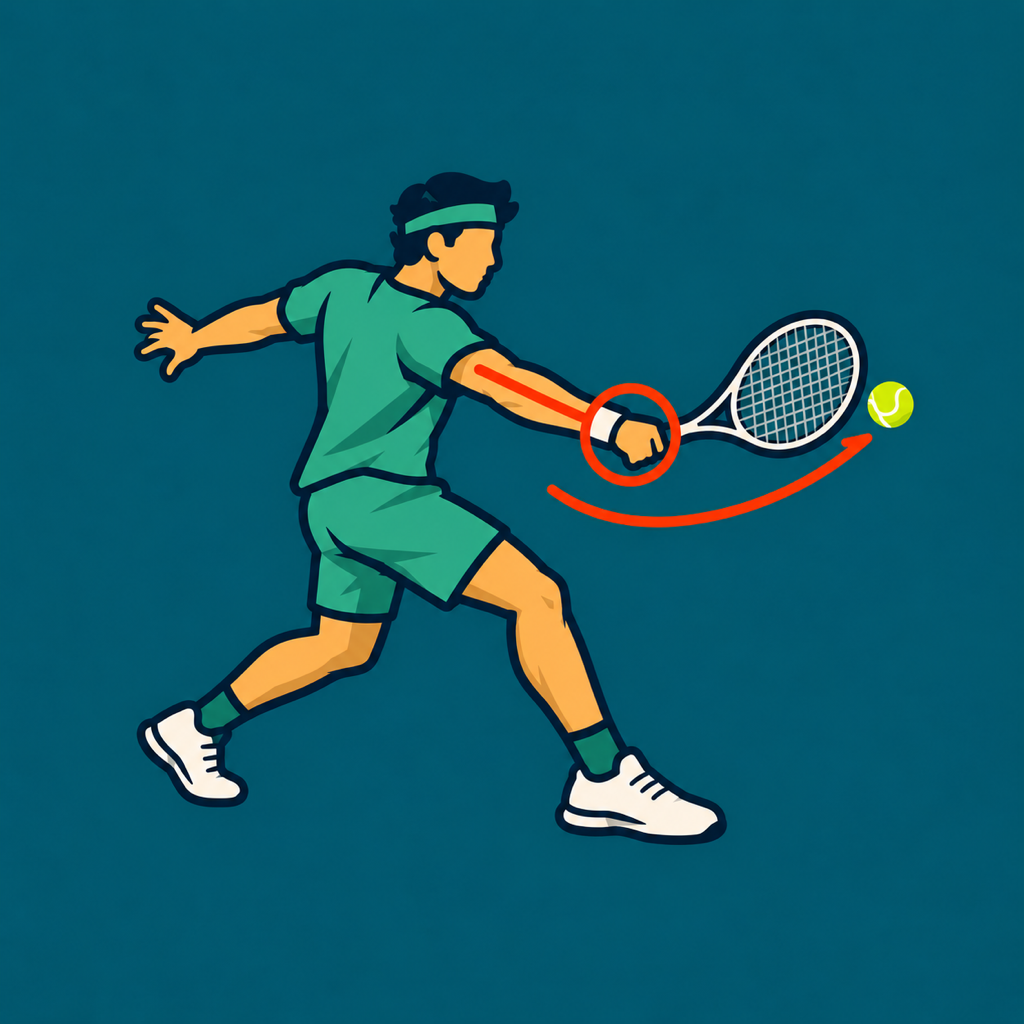
Use the drawing tools to mark an angle, path, or position. In Compare, choose two clips and use their independent controls to line up the same point in the movement.
Get a clearer body overlay
Keep one player’s full body in view, use steady framing and good light, and avoid obstructed limbs. Pose overlays are estimates and can be incomplete or inaccurate. They do not track the ball or racket.
Camera, microphone, and Photos permissions
Check Settings → Apps → TennisDraw if recording or saving is unavailable. Camera and microphone access support recording; Photos access supports selecting and saving videos. The system may ask for access when you first use a feature.
Keep your videos safe
Allow an export to finish before closing the app. Export anything you want to keep before deleting the app or replacing your device. TennisDraw has no account or app-managed cloud backup.
Purchases
TennisDraw is designed for one upfront App Store purchase with no in-app purchases or subscriptions. Apple handles payment and any eligible refunds. For purchase support, visit Apple’s purchase support.
Device requirements
iPhone or iPad with iOS/iPadOS 17.6 or later. Core video review and on-device body analysis work without signing in.